使用 React Hooks 进行状态管理
React 从 React 16.8 开始引入了一种全新的概念——React Hooks。尽管这是一个相对较新的概念,但它使 React 函数式组件能够拥有自己的状态和生命周期。此外,React Hooks 还使函数式组件能够使用之前不可用的许多功能。在本章中,我们将学习如何在函数式组件中使用 React Hooks 进行状态管理。
什么是 React Hooks?
React Hooks 是 React 提供的一种特殊函数,用于在 React 函数式组件中处理特定功能。React 为每个支持的功能提供了一个 Hook 函数。例如,React 提供了 useState() 函数来在函数式组件中管理状态。当 React 函数式组件使用 React Hooks 时,React Hooks 会附加到组件上并提供额外的功能。
useState() Hook 的一般签名如下 −
const [<state variable>, <state update function>] = useState(<initial value>);
例如,在时钟组件中使用 Hooks 进行状态管理可以如下所示 −
const [currentDateTime, setCurrentDateTime] = useState(new Date());
setInterval(() => setCurrentDateTime(new Date()), 1000);
这里,
- currentDateTime − 用于保存当前日期和时间的变量(由 setState() 返回)
- setCurrentDateTime() − 用于设置当前日期和时间的函数(由 setState() 返回)
创建有状态组件
在本章中,让我们使用 Hooks 重新创建我们的时钟组件。
步骤 1 − 首先,按照 创建 React 应用程序 章节中的说明,使用 Create React App 或 Rollup bundler 创建一个新的 React 应用程序 react-clock-hook-app。
步骤 2 − 在您喜欢的编辑器中打开该应用程序。
在应用程序的根目录下创建 src 文件夹。
在 src 文件夹下创建 components 文件夹。
在 src/components 文件夹下创建一个文件 Clock.js,并开始编辑。
导入 React library 和 React state Hook useState。
import React, { useState } from 'react';
步骤 2 − 创建 Clock 组件。
function Clock() {
}
创建 state Hook 来维护日期和时间。
const [currentDateTime, setCurrentDateTime] = useState(new Date());
每秒设置一次日期和时间。
setInterval(() => setCurrentDateTime(new Date()), 1000);
使用 currentDateTime 创建用户界面来显示当前日期和时间,并返回它。
return ( <div><p>The current time is {currentDateTime.toString()}</p></div> );
步骤 3 − 最后,使用以下代码片段导出该组件 −
export default Clock;
Clock 组件的完整源代码如下 −
import React, { useState } from 'react';

function Clock(props) {
   const [currentDateTime, setCurrentDateTime] = useState(new Date());
   setInterval(() => setCurrentDateTime(new Date()), 1000);
   return (
      <div><p>The current time is {currentDateTime.toString()}</p></div>
   );
}
export default Clock;
index.js:
接下来,在 src 文件夹下创建一个 index.js 文件,并使用 Clock component。
import React from 'react';
import { createRoot } from 'react-dom/client';
import Clock from './components/Clock';

const container = document.getElementById('root');
const root = createRoot(container);
root.render(<Clock />);
最后,在根文件夹下创建一个 public 文件夹,并创建 index.html 文件。
<!DOCTYPE html>
<html lang="en">
   <head>
      <meta charset="utf-8">
      <title>Clock</title>
   </head>
   <body>
      <div id="root"></div>
      <script type="text/JavaScript" src="./index.js"></script>
   </body>
</html>
然后,使用 npm 命令启动应用程序。
npm start
打开浏览器,在地址栏输入 http://localhost:3000 并按回车。应用程序将显示时间并每秒更新一次。
The current time is Sun Nov 09 2025 14:42:00 GMT+0530 (India Standard Time)
上述应用程序运行良好。但是,每秒执行的 setCurrentDateTime() 在应用程序结束时需要被移除。我们可以使用 React 提供的另一个 Hook useEffect 来实现这一点。我们将在接下来的章节(组件生命周期)中学习它。
在支出管理应用中引入 state
在本章中,让我们通过添加一个简单的功能来在支出管理应用中引入 state 管理,使用 Hooks 删除支出项目。
步骤 1 − 在您喜欢的编辑器中打开 expense-manager 应用。
在 src/components 文件夹下创建一个新文件 ExpenseEntryItemListFn.js,并开始编辑。
导入 React 库和 React state Hook,即 useState。
import React, { useState } from 'react';
导入 CSS 文件 ExpenseEntryItem.css。
import './ExpenseEntryItemList.css'
步骤 2 − 创建 ExpenseEntryItemListFn 组件。
function ExpenseEntryItemListFn(props) { }
使用通过 props 传递给组件的支出项目来初始化组件的 state Hooks。
const [items, setItems] = useState(props.items);
步骤 3 − 创建事件处理器来高亮显示行。
function handleMouseEnter(e) {
   e.target.parentNode.classList.add("highlight");
}
function handleMouseLeave(e) {
   e.target.parentNode.classList.remove("highlight");
}
function handleMouseOver(e) {
   console.log("The mouse is at (" + e.clientX + ", " + e.clientY + ")");
}
步骤 4 − 创建事件处理器,使用 items 和 setItems() 删除选中的项目。
function handleDelete(id, e) {
   e.preventDefault();
   console.log(id);
   let newItems = [];
   items.forEach((item, idx) => {
      if (item.id != id)
         newItems.push(item)
   })
   setItems(newItems);
}
步骤 5 − 创建 getTotal() 方法来计算总金额。
function getTotal() {
   let total = 0;
   for (var i = 0; i < items.length; i++) {
      total += items[i].amount
   }
   return total;
}
步骤 6 − 通过循环遍历 items 创建用户界面来显示支出。
const lists = items.map((item) =>
   <tr key={item.id} onMouseEnter={handleMouseEnter} onMouseLeave={handleMouseLeave}>
      <td>{item.name}</td>
      <td>{item.amount}</td>
      <td>{new Date(item.spendDate).toDateString()}</td>
      <td>{item.category}</td>
      <td><a href="#" onClick={(e) => handleDelete(item.id, e)}>Remove</a></td>
   </tr>
);
步骤 7 − 创建完整的 UI 来显示支出并返回它。
return (
   <table onMouseOver={handleMouseOver}>
      <thead>
         <tr>
            <th>Item</th>
            <th>Amount</th>
            <th>Date</th>
            <th>Category</th>
            <th>Remove</th>
         </tr>
      </thead>
      <tbody>
         {lists}
         <tr>
            <td colSpan="1" style={{ textAlign: "right" }}>Total Amount</td>
            <td colSpan="4" style={{ textAlign: "left" }}>
               {getTotal()}
            </td>
         </tr>
      </tbody>
   </table>
);
最后,按如下所示导出该函数 −
export default ExpenseEntryItemListFn;
ExpenseEntryItemListFn 的完整代码如下 −
import React, { useState } from 'react';
import './ExpenseEntryItemList.css'

function ExpenseEntryItemListFn(props) {
   const [items, setItems] = useState(props.items);

   function handleMouseEnter(e) {
      e.target.parentNode.classList.add("highlight");
   }
   function handleMouseLeave(e) {
      e.target.parentNode.classList.remove("highlight");
   }
   function handleMouseOver(e) {
      console.log("The mouse is at (" + e.clientX + ", " + e.clientY + ")");
   }
   function handleDelete(id, e) {
      e.preventDefault();
      console.log(id);
      let newItems = [];
      items.forEach((item, idx) => {
         if (item.id != id)
            newItems.push(item)
      })
      setItems(newItems);
   }
   function getTotal() {
      let total = 0;
      for (var i = 0; i < items.length; i++) {
         total += items[i].amount
      }
      return total;
   }
   const lists = items.map((item) =>
      <tr key={item.id} onMouseEnter={handleMouseEnter} onMouseLeave={handleMouseLeave}>
         <td>{item.name}</td>
         <td>{item.amount}</td>
         <td>{new Date(item.spendDate).toDateString()}</td>
         <td>{item.category}</td>
         <td><a href="#"
            onClick={(e) => handleDelete(item.id, e)}>Remove</a></td>
      </tr>
   );
   return (
      <table onMouseOver={handleMouseOver}>
         <thead>
            <tr>
               <th>Item</th>
               <th>Amount</th>
               <th>Date</th>
               <th>Category</th>
               <th>Remove</th>
            </tr>
         </thead>
         <tbody>
            {lists}
            <tr>
               <td colSpan="1" style={{ textAlign: "right" }}>Total Amount</td>
               <td colSpan="4" style={{ textAlign: "left" }}>
                  {getTotal()}
               </td>
            </tr>
         </tbody>
      </table>
   );
}
export default ExpenseEntryItemListFn;
index.js
更新 index.js 并包含 ExpenseEntryItemListFn 组件 −
import React from 'react';
import { createRoot } from 'react-dom/client';
import ExpenseEntryItemListFn from './components/ExpenseEntryItemListFn'

const items = [
   { id: 1, name: "Pizza", amount: 80, spendDate: "2020-10-10", category: "Food" },
   { id: 2, name: "Grape Juice", amount: 30, spendDate: "2020-10-12", category: "Food" },
   { id: 3, name: "Cinema", amount: 210, spendDate: "2020-10-16", category: "Entertainment" },
   { id: 4, name: "Java Programming book", amount: 242, spendDate: "2020-10-15", category: "Academic" },
   { id: 5, name: "Mango Juice", amount: 35, spendDate: "2020-10-16", category: "Food" },
   { id: 6, name: "Dress", amount: 2000, spendDate: "2020-10-25", category: "Cloth" },
   { id: 7, name: "Tour", amount: 2555, spendDate: "2020-10-29", category: "Entertainment" },
   { id: 8, name: "Meals", amount: 300, spendDate: "2020-10-30", category: "Food" },
   { id: 9, name: "Mobile", amount: 3500, spendDate: "2020-11-02", category: "Gadgets" },
   { id: 10, name: "Exam Fees", amount: 1245, spendDate: "2020-11-04", category: "Academic" }
]

const container = document.getElementById('root');
const root = createRoot(container);
root.render(<ExpenseEntryItemListFn items={items} />);
接下来,使用 npm 命令启动应用。
npm start
接下来,打开浏览器,在地址栏输入 http://localhost:3000 并按回车。
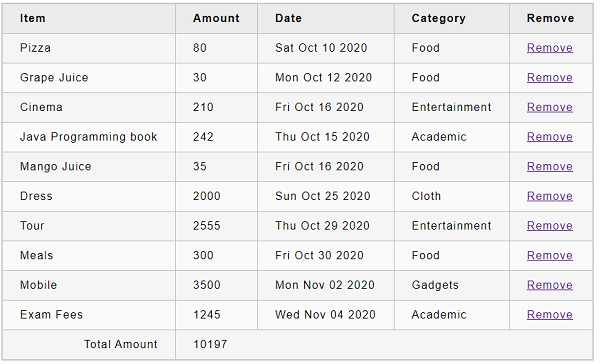
最后,要删除支出项目,点击相应的删除链接。它将删除相应项目并刷新用户界面,如动画 GIF 所示。