VueJS - 过渡与动画
在本章中,我们将讨论 VueJS 中提供的过渡和动画功能。
Transition
VueJS 提供了多种方式,在 HTML 元素添加到 DOM 或更新时为其应用 transition。VueJS 内置了一个 transition 组件,需要将其包裹在需要 transition 的元素周围。
Syntax
<transition name = "nameoftransition">
   <div></div>
</transition>
让我们通过一个示例来理解 transition 的工作原理。
Example
<html>
   <head>
      <title>VueJs Instance</title>
      <script type = "text/javascript" src = "js/vue.js"></script>
   </head>
   <body>
      <style>
         .fade-enter-active, .fade-leave-active {
            transition: opacity 2s
         }
         .fade-enter, .fade-leave-to /* .fade-leave-active below version 2.1.8 */ {
            opacity: 0
         }
      </style>
      <div id = "databinding">
         <button v-on:click = "show = !show">Click Me</button>
         <transition name = "fade">
            <p v-show = "show" v-bind:style = "styleobj">Animation Example</p>
         </transition>
      </div>
      <script type = "text/javascript">
         var vm = new Vue({
            el: '#databinding',
            data: {
               show:true,
               styleobj :{
                  fontSize:'30px',
                  color:'red'
               }
            },
            methods : {
            }
         });
      </script>
   </body>
</html>
有一个名为“Click Me”的按钮,通过它我们可以将变量 show 的值从 true 切换到 false,反之亦然。只有当变量为 true 时,p 标签才会显示文本元素。我们已将 p 标签包裹在 transition 元素中,如以下代码所示。
<transition name = "fade">
   <p v-show = "show" v-bind:style = "styleobj">Animation Example</p>
</transition>
transition 的名称为 fade。VueJS 为 transition 提供了一些标准 class,这些 class 以 transition 的名称为前缀。
以下是为 transition 提供的一些标准 class −
v-enter − 该 class 在元素更新/添加之前最初被调用。它是起始状态。
v-enter-active − 该 class 用于定义进入 transition 阶段时的延迟、持续时间和缓动曲线。这是整个进入阶段的活动状态,该 class 在整个进入阶段可用。
v-leave − 当离开 transition 被触发时添加,然后移除。
v-leave-active − 在离开阶段应用。当 transition 完成时移除。该 class 用于在离开阶段应用延迟、持续时间和缓动曲线。
上述每个 class 都会以 transition 的名称为前缀。我们将 transition 的名称设为 fade,因此 class 的名称变为 .fade_enter, .fade_enter_active, .fade_leave, .fade_leave_active。
它们在以下代码中定义。
<style>
   .fade-enter-active, .fade-leave-active {
      transition: opacity 2s
   }
   .fade-enter, .fade-leave-to /* .fade-leave-active below version 2.1.8 */ {
      opacity: 0
   }
</style>
.fade_enter_active 和 .fade_leave_active 一起定义,在开始和离开阶段应用 transition。不透明度属性在 2 秒内变为 0。
持续时间在 .fade_enter_active 和 .fade_leave_active 中定义。最终状态在 .fade_enter 和 .fade_leave_to 中定义。
浏览器中的显示效果如下。
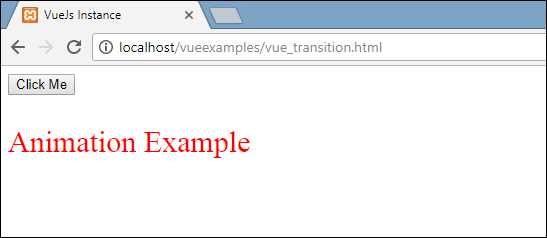
点击按钮后,文本将在两秒内淡出。
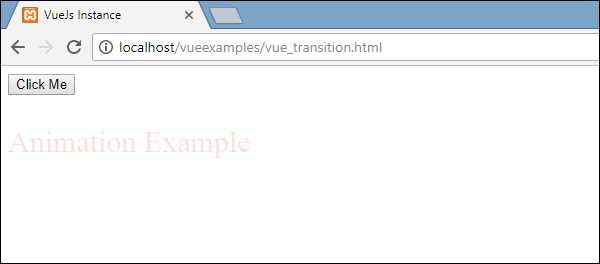
两秒后,文本将完全消失。
让我们再看另一个示例,其中有一个图像,点击按钮时它会在 x 轴上移动。
Example
<html>
   <head>
      <title>VueJs Instance</title>
      <script type = "text/javascript" src = "js/vue.js"></script>
   </head>
   <body>
      <style>
         .shiftx-enter-active, .shiftx-leave-active {
            transition: all 2s ease-in-out;
         }
         .shiftx-enter, .shiftx-leave-to /* .fade-leave-active below version 2.1.8 */ {
            transform :  translateX(100px);
         }
      </style>
      <div id = "databinding">
         <button v-on:click = "show = !show">Click Me</button>
         <transition name = "shiftx">
            <p v-show = "show">
               <img src = "images/img.jpg" style = "width:100px;height:100px;" />
            </p>
         </transition>
      </div>
      <script type = "text/javascript">
         var vm = new Vue({
            el: '#databinding',
            data: {
               show:true
            },
            methods : {
            }
         });
      </script>
   </body>
</html>
transition 的名称为 shiftx。使用以下代码片段,通过 transform 属性将图像在 x 轴上移动 100px。
<style>
   .shiftx-enter-active, .shiftx-leave-active {
      transition: all 2s ease-in-out;
   }
   .shiftx-enter, .shiftx-leave-to /* .fade-leave-active below version 2.1.8 */ {
      transform :  translateX(100px);
   }
</style>
以下是输出效果。
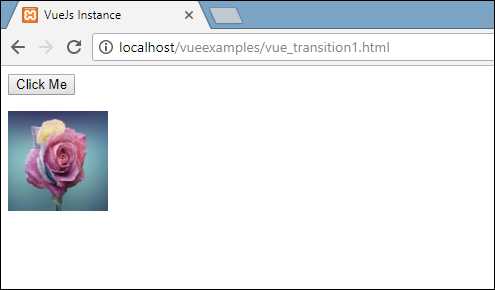
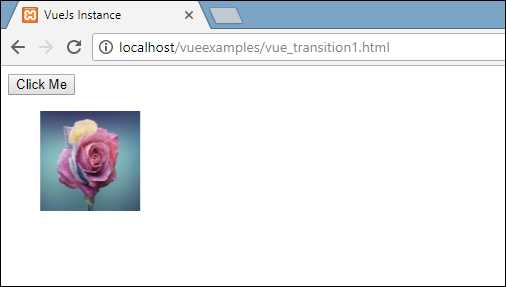
点击按钮后,图像将向右移动 100px,如以下截图所示。
动画
动画的实现方式与 transition 相同。动画也需要声明特定的 class 来实现效果。
让我们通过一个示例来了解动画的工作原理。
示例
<html>
   <head>
      <title>VueJs Instance</title>
      <script type = "text/javascript" src = "js/vue.js"></script>
   </head>
   <body>
      <style>
         .shiftx-enter-active {
            animation: shift-in 2s;
         }
         .shiftx-leave-active {
            animation: shift-in 2s reverse;
         }
         @keyframes shift-in {
            0%   {transform:rotateX(0deg);}
            25%  {transform:rotateX(90deg);}
            50%  {transform:rotateX(120deg);}
            75%  {transform:rotateX(180deg);}
            100% {transform:rotateX(360deg);}
         }
      </style>
      <div id = "databinding">
         <button v-on:click = "show = !show">Click Me</button>
         <transition name = "shiftx">
            <p v-show = "show">
               <img src = "images/img.jpg" style = "width:100px;height:100px;" />
            </p>
         </transition>
      </div>
      <script type = "text/javascript">
         var vm = new Vue({
            el: '#databinding',
            data: {
               show:true
            },
            methods : {
            }
         });
      </script>
   </body>
</html>
要应用动画,需要使用与 transition 相同的 class。在上面的代码中,我们有一个图片被包裹在 p 标签中,如以下代码片段所示。
<transition name = "shiftx">
   <p v-show = "show"><img src = "images/img.jpg" style = "width:100px;height:100px;" /></p>
</transition>
transition 的名称是 shiftx。应用的 class 如下所示 −
<style>
   .shiftx-enter-active {
      animation: shift-in 2s;
   }
   .shiftx-leave-active {
      animation: shift-in 2s reverse;
   }
   @keyframes shift-in {
      0%   {transform:rotateX(0deg);}
      25%  {transform:rotateX(90deg);}
      50%  {transform:rotateX(120deg);}
      75%  {transform:rotateX(180deg);}
      100% {transform:rotateX(360deg);}
   }
</style>
class 以 transition 名称作为前缀,即 shiftx-enter-active 和 .shiftx-leave-active。动画使用从 0% 到 100% 的 keyframes 定义。在每个 keyframe 中定义了 transform,如以下代码片段所示。
@keyframes shift-in {
   0%   {transform:rotateX(0deg);}
   25%  {transform:rotateX(90deg);}
   50%  {transform:rotateX(120deg);}
   75%  {transform:rotateX(180deg);}
   100% {transform:rotateX(360deg);}
}
以下是输出效果。
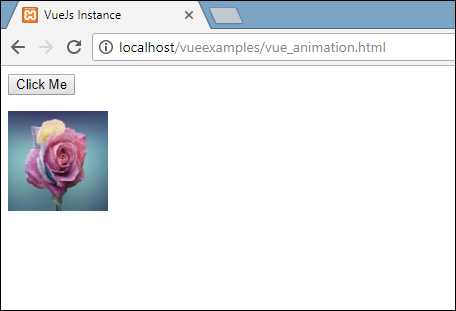
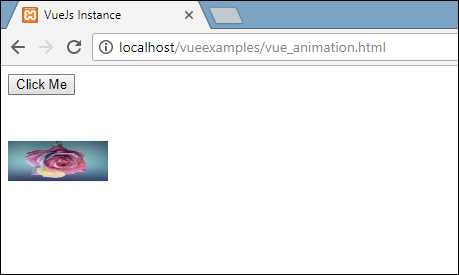
点击按钮后,它会从 0 度旋转到 360 度然后消失。
自定义过渡类
VueJS 提供了一系列自定义类,这些类可以作为属性添加到 transition 元素上。
- enter-class
- enter-active-class
- leave-class
- leave-active-class
当我们想要使用外部 CSS 库(如 animate.css)时,自定义类就派上用场了。
示例
<html>
   <head>
      <link href = "https://cdn.jsdelivr.net/npm/animate.css@3.5.1" rel = "stylesheet" type = "text/css">
      <script type = "text/javascript" src = "js/vue.js"></script>
   </head>
   <body>
      <div id = "animate" style = "text-align:center">
         <button @click = "show = !show"><span style = "font-size:25px;">Animate</span></button>
         <transition
            name = "custom-classes-transition"
            enter-active-class = "animated swing"
            leave-active-class = "animated bounceIn">
            <p v-if = "show"><span style = "font-size:25px;">Example</span></p>
         </transition>
      </div>
      <script type = "text/javascript">
         var vm =  new Vue({
            el: '#animate',
            data: {
               show: true
            }
         });
      </script>
   </body>
</html>
输出
输出
输出

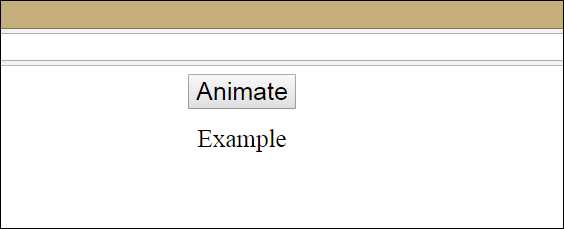
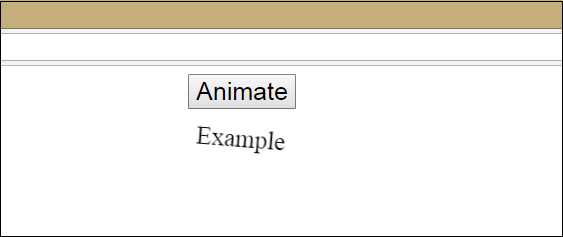
上述代码中应用了两种动画:一个是 enter-active-class = animated swing,另一个是 leave-active-class = animated bounceIn。我们使用第三方库中的自定义动画类来应用动画效果。
显式过渡持续时间
我们可以使用 VueJS 在元素上应用 transition 和 animation。Vue 会等待 transitionend 和 animationend 事件来检测动画或过渡是否完成。
有时过渡可能会导致延迟。在这种情况下,我们可以显式指定 duration,如下所示。
<transition :duration = "1000"></transition>
<transition :duration = "{ enter: 500, leave: 800 }">...</transition>
如上所示,我们可以在 transition 元素上使用带 : 的 duration 属性。如果需要为进入和离开分别指定持续时间,可以如上述代码所示进行设置。
JavaScript Hooks
过渡类可以通过 JavaScript 事件作为方法调用。为了更好地理解,让我们看一个示例。
示例
<html>
   <head>
      <title>VueJs Instance</title>
      <script type = "text/javascript" src = "js/vue.js"></script>
   </head>
   <body>
      <script src = "https://cdnjs.cloudflare.com/ajax/libs/velocity/1.2.3/velocity.min.js"></script>
      <div id = "example-4">
         <button @click = "show = !show">
            <span style = "font-size:25px;">Toggle</span>
         </button>
         <transition  v-on:before-enter = "beforeEnter"
            v-on:enter = "enter"
            v-on:leave = "leave"
            v-bind:css = "false">
            <p v-if = "show" style = "font-size:25px;">Animation Example with velocity</p>
         </transition>
      </div>
      <script type = "text/javascript">
         var vm = new Vue({
            el: '#example-4',
            data: {
               show: false
            },
            methods: {
               beforeEnter: function (el) {
                  el.style.opacity = 0
               },
               enter: function (el, done) {
                  Velocity(el, { opacity: 1, fontSize: '25px' }, { duration: 1000 })
                  Velocity(el, { fontSize: '10px' }, { complete: done })
               },
               leave: function (el, done) {
                  Velocity(el, { translateX: '15px', rotateZ: '50deg' }, { duration: 1500 })
                  Velocity(el, { rotateZ: '100deg' }, { loop: 2 })
                  Velocity(el, {
                     rotateZ: '45deg',
                     translateY: '30px',
                     translateX: '30px',
                     opacity: 0
                  }, { complete: done })
               }
            }
         });
      </script>
   </body>
</html>
输出
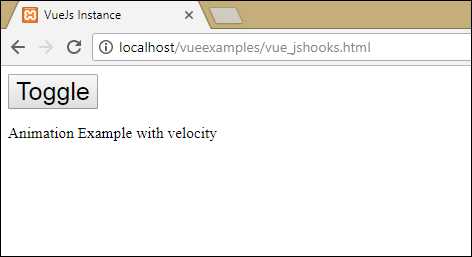
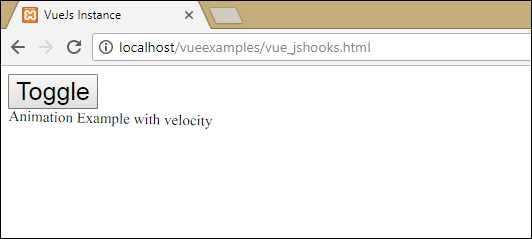
在上例中,我们使用 js methods 在 transition 元素上执行动画。
transition 上的 methods 应用如下 −
<transition  v-on:before-enter = "beforeEnter"
   v-on:enter = "enter"
   v-on:leave = "leave"
   v-bind:css = "false">
   <p v-if = "show" style = "font-size:25px;">Animation Example with velocity</p>
</transition>
添加了前缀 v-on 以及调用该 method 的事件名称。这些 methods 在 Vue 实例中定义如下 −
methods: {
   beforeEnter: function (el) {
      el.style.opacity = 0
   },
   enter: function (el, done) {
      Velocity(el, { opacity: 1, fontSize: '25px' }, { duration: 1000 })
      Velocity(el, { fontSize: '10px' }, { complete: done })
   },
   leave: function (el, done) {
      Velocity(el, { translateX: '15px', rotateZ: '50deg' }, { duration: 1500 })
      Velocity(el, { rotateZ: '100deg' }, { loop: 2 })
      Velocity(el, {
         rotateZ: '45deg',
         translateY: '30px',
         translateX: '30px',
         opacity: 0
      }, { complete: done })
   }
}
这些 methods 中的每一个都会应用所需的过渡效果。点击按钮时会应用 opacity 动画,动画完成后也会应用。动画使用了第三方库。
在 transition 上添加了属性 v-bind:css = "false",这样 Vue 就会理解这是一个 JavaScript 过渡。
初始渲染时的 Transition
为了在开始时添加动画,我们需要在 transition 元素上添加 appear 属性。
让我们看一个例子来更好地理解它。
示例
<html>
   <head>
      <link href = "https://cdn.jsdelivr.net/npm/animate.css@3.5.1" rel = "stylesheet" type = "text/css">
      <script type = "text/javascript" src = "js/vue.js"></script>
   </head>
   <body>
      <div id = "animate" style = "text-align:center">
         <transition
            appear
            appear-class = "custom-appear-class"
            appear-active-class = "animated bounceIn">
            <h1>BounceIn - Animation Example</h1>
         </transition>
         <transition
            appear
            appear-class = "custom-appear-class"
            appear-active-class = "animated swing">
            <h1>Swing - Animation Example</h1>
         </transition>
         <transition
            appear
            appear-class = "custom-appear-class"
            appear-active-class = "animated rubberBand">
            <h1>RubberBand - Animation Example</h1>
         </transition>
      </div>
      <script type = "text/javascript">
         var vm =  new Vue({
            el: '#animate',
            data: {
               show: true
            }
         });
      </script>
   </body>
</html>
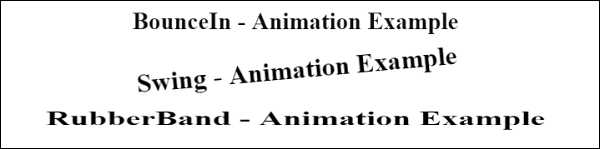
在上例中,我们使用了来自 animate.css library 的三种不同的动画。我们在 transition 元素上添加了 appear。
执行上述代码后,浏览器中将显示以下输出。
组件上的动画
我们可以使用以下代码为组件包裹 transition。这里我们使用了 dynamic component。
示例
<html>
   <head>
      <title>VueJs Instance</title>
      <script type = "text/javascript" src = "js/vue.js"></script>
      <link href = "https://cdn.jsdelivr.net/npm/animate.css@3.5.1" rel = "stylesheet" type = "text/css">
   </head>
   <body>
      <div id = "databinding" style = "text-align:center;">
         <transition  appear
            appear-class = "custom-appear-class"
            appear-active-class = "animated wobble">
            <component v-bind:is = "view"></component>
         </transition>
      </div>
      <script type = "text/javascript">
         var vm = new Vue({
            el: '#databinding',
            data: {
               view: 'component1'
            },
            components: {
               'component1': {
                  template: '<div><span style = "font-
                  size:25;color:red;">Animation on Components</span></div>'
               }
            }
         });
      </script>
   </body>
</html>
输出
