Ionic - Javascript 底部栏
这个指令会在屏幕底部添加一个底部栏。
使用 Footer
Ionic 底部栏可以通过应用 ion-footer-bar class 来添加。它的使用方式与 header 相同。我们可以使用 align-title 属性将标题放置在屏幕的左侧、中心或右侧。以 bar 为前缀,我们可以使用 Ionic 的颜色。让我们创建一个红色底部栏,并将标题置于中心。
<ion-footer-bar align-title = "center" class = "bar-assertive">
   <h1 class = "title">Title!</h1>
</ion-footer-bar>
上述代码将生成以下屏幕 −

添加元素
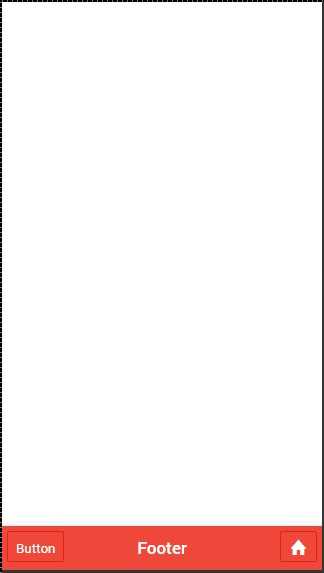
我们可以在 ion-footer-bar 中添加按钮、图标或其他元素,并应用相应的样式。让我们在底部栏中添加一个按钮和一个图标。
<ion-footer-bar class = "bar-assertive">
   <div class = "buttons">
      <button class = "button">Button</button>
   </div>

   <h1 class = "title">Footer</h1>

   <div class = "buttons">
      <button class = "button icon ion-home"></button>
   </div>
</ion-footer-bar>
上述代码将生成以下屏幕−
添加子底部栏
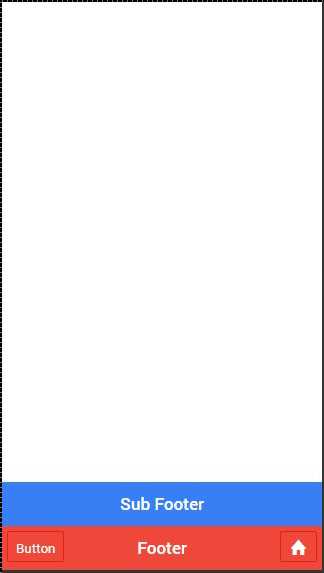
我们之前展示了如何使用子头部栏。同样,也可以创建子底部栏。它将位于底部栏上方。我们只需在 ion-footer-bar 元素上添加 bar-subfooter class 即可。
在接下来的示例中,我们将在之前创建的底部栏上方添加子底部栏。
<ion-footer-bar class = "bar-subfooter bar-positive">
   <h1 class = "title">Sub Footer</h1>
</ion-footer-bar>

<ion-footer-bar class = "bar-assertive">
   <div class = "buttons">
      <button class = "button">Button</button>
   </div>

   <h1 class = "title">Footer</h1>

   <div class = "buttons" ng-click = "doSomething()">
      <button class = "button icon ion-home"></button>
   </div>
</ion-footer-bar>
上述代码将生成以下屏幕 −