PostgreSQL - 环境设置
要开始了解 PostgreSQL 的基础知识,首先让我们安装 PostgreSQL。本章将介绍在 Linux、Windows 和 Mac OS 平台上安装 PostgreSQL。
在 Linux/Unix 上安装 PostgreSQL
按照以下步骤在您的 Linux 机器上安装 PostgreSQL。请确保在进行安装前已以 root 用户身份登录。
从 EnterpriseDB 选择您想要的 PostgreSQL 版本号,并尽可能精确地选择您想要的平台。
我为我的 64 位 CentOS-6 机器下载了 postgresql-9.2.4-1-linux-x64.run。现在,让我们按以下方式执行它 −
[root@host]# chmod +x postgresql-9.2.4-1-linux-x64.run
[root@host]# ./postgresql-9.2.4-1-linux-x64.run
------------------------------------------------------------------------
Welcome to the PostgreSQL Setup Wizard.

------------------------------------------------------------------------
Please specify the directory where PostgreSQL will be installed.

Installation Directory [/opt/PostgreSQL/9.2]:
启动安装程序后,它会询问一些基本问题,如安装位置、使用数据库的用户密码、端口号等。请将它们保持为默认值,除了密码,您可以根据自己的选择提供密码。它将在您的 Linux 机器上安装 PostgreSQL,并显示以下消息 −
Please wait while Setup installs PostgreSQL on your computer.

 Installing
 0% ______________ 50% ______________ 100%
 #########################################

-----------------------------------------------------------------------
Setup has finished installing PostgreSQL on your computer.
按照以下安装后步骤创建您的数据库 −
[root@host]# su - postgres
Password:
bash-4.1$ createdb testdb
bash-4.1$ psql testdb
psql (8.4.13, server 9.2.4)

test=#
如果 postgres server 未运行,您可以使用以下命令启动/重启它 −
[root@host]# service postgresql restart
Stopping postgresql service:                               [  OK  ]
Starting postgresql service:                               [  OK  ]
如果您的安装正确,您将看到如上所示的 PostgreSQL 提示符 test=#。
在 Windows 上安装 PostgreSQL
按照以下步骤在您的 Windows 机器上安装 PostgreSQL。请确保在安装时关闭第三方杀毒软件。
从 EnterpriseDB 选择您想要的 PostgreSQL 版本号,并尽可能精确地选择您想要的平台。
我为运行在 32 位模式的 Windows PC 下载了 postgresql-9.2.4-1-windows.exe,因此让我们以管理员身份运行 postgresql-9.2.4-1-windows.exe 来安装 PostgreSQL。选择您想要安装的位置。默认情况下,它安装在 Program Files 文件夹中。
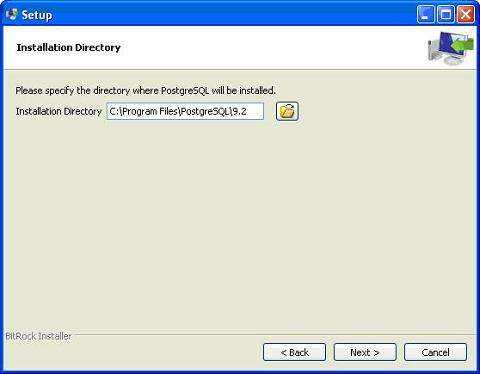
安装过程的下一步是选择存储数据的位置。默认情况下,它存储在“data”目录下。
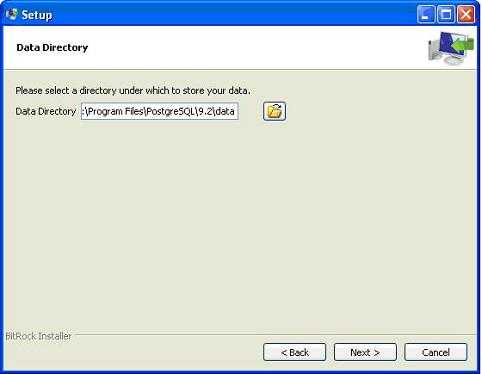
接下来,安装程序会要求输入密码,因此您可以使用您喜欢的密码。

下一步;将端口保持为默认值。

在下一步,当询问“Locale”时,我选择了“English, United States”。
在您的系统上安装 PostgreSQL 需要一段时间。安装过程完成后,您将看到以下屏幕。取消选中复选框并单击 Finish 按钮。
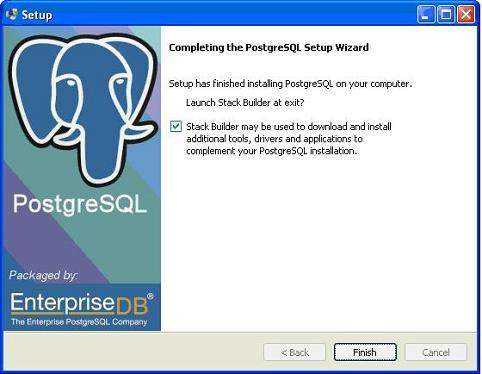
安装过程完成后,您可以从 Program Menu 下的 PostgreSQL 9.2 访问 pgAdmin III、StackBuilder 和 PostgreSQL shell。
在 Mac 上安装 PostgreSQL
按照以下步骤在您的 Mac 机器上安装 PostgreSQL。在开始安装前,请确保您已以 administrator 身份登录。
从 EnterpriseDB 获取适用于 Mac OS 的最新版本 PostgreSQL。
我为运行 OS X 版本 10.8.3 的 Mac OS 下载了 postgresql-9.2.4-1-osx.dmg。现在,让我们在 Finder 中打开 dmg 镜像,双击它,即可在以下窗口中看到 PostgreSQL 安装程序 −
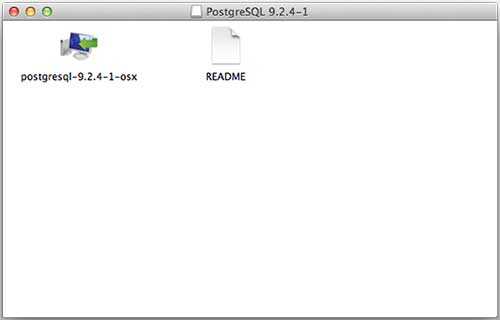
接下来,点击 postgres-9.2.4-1-osx 图标,会出现警告消息。接受警告并继续安装。它会要求输入管理员密码,如以下窗口所示 −

输入密码,继续安装,完成此步骤后,重启您的 Mac 机器。如果没有看到以下窗口,请重新开始安装。
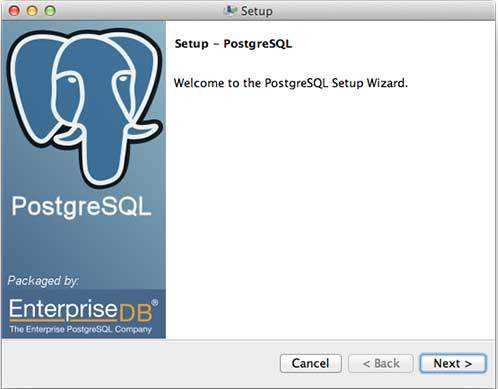
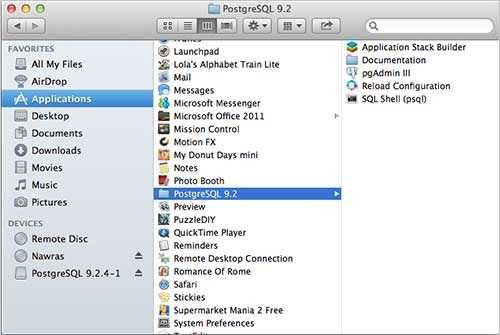
启动安装程序后,它会询问一些基本问题,如安装位置、使用数据库的用户密码、端口号等。因此,除密码外,请将所有选项保持默认值,您可以根据需要设置密码。它会将 PostgreSQL 安装到 Mac 机器的 Applications 文件夹中,您可以检查 −
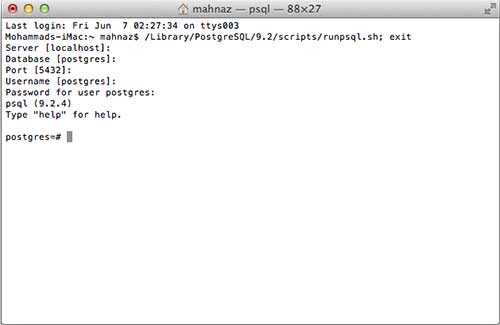
现在,您可以启动任何程序开始使用。让我们从 SQL Shell 开始。当您启动 SQL Shell 时,除输入安装时选择的密码外,使用它显示的所有默认值。如果一切正常,您将进入 postgres database,并显示 postgress# 提示符,如以下所示 −
恭喜!!!现在您的环境已准备好开始 PostgreSQL database 编程。