使用 ProgressDialog 的 Android 进度条
进度条用于显示任务的进度。例如,当您从互联网上传或下载内容时,向用户显示下载/上传进度会更好。
在 Android 中,有一个名为 ProgressDialog 的 class,可以让您创建进度条。要实现这一点,您需要实例化该 class 的对象。其语法如下。
ProgressDialog progress = new ProgressDialog(this);
现在,您可以设置此对话框的一些属性,例如其样式、文本等。
progress.setMessage("Downloading Music :) ");
progress.setProgressStyle(ProgressDialog.STYLE_HORIZONTAL);
progress.setIndeterminate(true);
除了这些方法外,ProgressDialog class 还提供了其他方法。
| 序号 | 标题与描述 |
|---|---|
| 1 |
getMax() 此方法返回进度的最大值。 |
| 2 |
incrementProgressBy(int diff) 此方法将进度条按传入参数的值差递增。 |
| 3 |
setIndeterminate(boolean indeterminate) 此方法将进度指示器设置为可确定或不可确定。 |
| 4 |
setMax(int max) 此方法设置进度对话框的最大值。 |
| 5 |
setProgress(int value) 此方法用于使用特定值更新进度对话框。 |
| 6 |
show(Context context, CharSequence title, CharSequence message) 这是一个静态方法,用于显示进度对话框。 |
示例
此示例演示了水平使用的进度对话框,实际上是一个 progress bar。按下按钮时会显示 progress bar。
要实验此示例,您需要在按照以下步骤开发应用程序后,在实际设备上运行。
| 步骤 | 描述 |
|---|---|
| 1 | 您将使用 Android Studio 创建一个 Android 应用程序,包名为 com.example.sairamkrishna.myapplication。 |
| 2 | 修改 src/MainActivity.java 文件,添加进度代码以显示进度对话框。 |
| 3 | 修改 res/layout/activity_main.xml 文件,添加相应的 XML 代码。 |
| 4 | 运行应用程序,选择一个运行中的 Android 设备,将应用程序安装到该设备上并验证结果。 |
以下是修改后的主 activity 文件 src/MainActivity.java 的内容。
package com.example.sairamkrishna.myapplication;

import android.app.ProgressDialog;
import android.support.v7.app.ActionBarActivity;
import android.os.Bundle;
import android.view.View;
import android.widget.Button;

public class MainActivity extends ActionBarActivity {
   Button b1;
   private ProgressDialog progress;

   protected void onCreate(Bundle savedInstanceState) {
      super.onCreate(savedInstanceState);
      setContentView(R.layout.activity_main);
      b1 = (Button) findViewById(R.id.button2);
   }

   public void download(View view){
      progress=new ProgressDialog(this);
      progress.setMessage("Downloading Music");
      progress.setProgressStyle(ProgressDialog.STYLE_HORIZONTAL);
      progress.setIndeterminate(true);
      progress.setProgress(0);
      progress.show();

      final int totalProgressTime = 100;
      final Thread t = new Thread() {
         @Override
         public void run() {
            int jumpTime = 0;

            while(jumpTime < totalProgressTime) {
               try {
                  sleep(200);
                  jumpTime += 5;
                  progress.setProgress(jumpTime);
               } catch (InterruptedException e) {
                  // TODO 自动生成的 catch 块
                  e.printStackTrace();
               }
            }
         }
      };
      t.start();
   }
}
将 res/layout/activity_main.xml 的内容修改为以下内容 −
<RelativeLayout xmlns:android="http://schemas.android.com/apk/res/android"
   xmlns:tools="http://schemas.android.com/tools" android:layout_width="match_parent"
   android:layout_height="match_parent" android:paddingLeft="@dimen/activity_horizontal_margin"
   android:paddingRight="@dimen/activity_horizontal_margin"
   android:paddingTop="@dimen/activity_vertical_margin"
   android:paddingBottom="@dimen/activity_vertical_margin" tools:context=".MainActivity">

   <TextView
      android:layout_width="wrap_content"
      android:layout_height="wrap_content"
      android:id="@+id/textView"
      android:layout_alignParentTop="true"
      android:layout_centerHorizontal="true"
      android:textSize="30dp"
      android:text="Progress bar" />

   <TextView
      android:layout_width="wrap_content"
      android:layout_height="wrap_content"
      android:text=""
      android:id="@+id/textView2"
      android:layout_below="@+id/textView"
      android:layout_centerHorizontal="true"
      android:textSize="35dp"
      android:textColor="#ff16ff01" />

   <Button
      android:layout_width="wrap_content"
      android:layout_height="wrap_content"
      android:text="Download"
      android:onClick="download"
      android:id="@+id/button2"
      android:layout_marginLeft="125dp"
      android:layout_marginStart="125dp"
      android:layout_centerVertical="true" />

</RelativeLayout>
以下是默认的 AndroidManifest.xml −
<?xml version="1.0" encoding="utf-8"?>
<manifest xmlns:android="http://schemas.android.com/apk/res/android"
   package="com.example.sairamkrishna.myapplication" >
   <application
      android:allowBackup="true"
      android:icon="@mipmap/ic_launcher"
      android:label="@string/app_name"
      android:theme="@style/AppTheme" >

      <activity
         android:name=".MainActivity"
         android:label="@string/app_name" >

         <intent-filter>
            <action android:name="android.intent.action.MAIN" />
            <category android:name="android.intent.category.LAUNCHER" />
         </intent-filter>

      </activity>

   </application>
</manifest>
让我们尝试运行您的应用程序。我们假设您已将实际的 Android 移动设备连接到计算机。从 Android Studio 运行应用程序时,打开项目的一个 activity 文件,然后点击工具栏中的 Run  图标。在启动应用程序之前,Android Studio 将显示以下窗口,让您选择要在哪里运行 Android 应用程序。
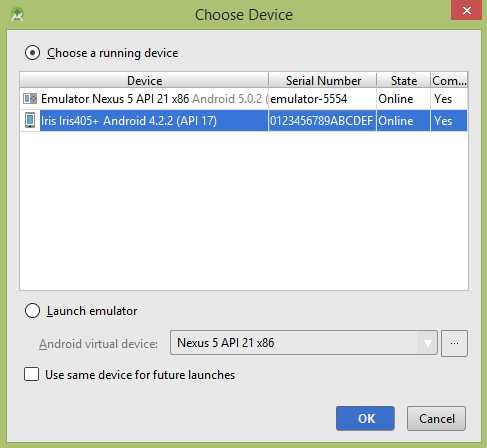
选择您的移动设备作为选项,然后检查您的移动设备,将显示以下屏幕 −
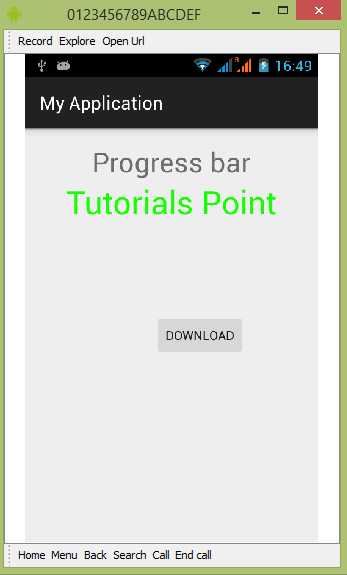
只需按下按钮即可启动 Progress bar。按下后,将出现以下屏幕 −
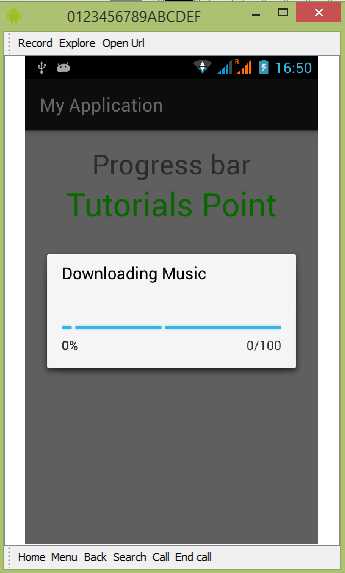
它将持续更新自身。