Android - 加载 Spinner
在 Android 中,你可以通过加载进度条来显示任务的进度。进度条有两种形状:加载条和 Loading Spinner。本章我们将讨论 Spinner。
Spinner 用于显示那些完成总时间未知的任务的进度。要使用它,只需在 XML 中像这样定义即可。
<ProgressBar
   android:id="@+id/progressBar1"
   style="?android:attr/progressBarStyleLarge"
   android:layout_width="wrap_content"
   android:layout_height="wrap_content"
   android:layout_centerHorizontal="true" />
在 XML 中定义后,你需要在 Java 文件中通过 ProgressBar class 获取其引用。其语法如下 −
private ProgressBar spinner;
spinner = (ProgressBar)findViewById(R.id.progressBar1);
之后,你可以通过 setVisibility 方法使其消失,并在需要时重新显示。其语法如下 −
spinner.setVisibility(View.GONE);
spinner.setVisibility(View.VISIBLE);
除了这些方法外,ProgressBar class 中还定义了其他方法,你可以使用它们更有效地处理 Spinner。
| 序号 | 方法与描述 |
|---|---|
| 1 | isIndeterminate() 指示此进度条是否处于 indeterminate 模式 |
| 2 | postInvalidate() 在事件循环的后续周期中触发 invalidate |
| 3 | setIndeterminate(boolean indeterminate) 更改此进度条的 indeterminate 模式 |
| 4 | invalidateDrawable(Drawable dr) 使指定的 Drawable 失效 |
| 5 | incrementSecondaryProgressBy(int diff) 将进度条的 secondary progress 增加指定的量 |
| 6 | getProgressDrawable() 获取在 progress 模式下用于绘制进度条的 drawable |
示例
这是一个演示使用 ProgressBar 处理 spinner 的示例。它创建一个基本应用程序,允许您点击按钮来开启 spinner。
要实验这个示例,您可以在实际设备或模拟器上运行。
| 步骤 | 描述 |
|---|---|
| 1 | 您将使用 Android Studio 创建一个 Android 应用程序,包名为 com.example.sairamkrishna.myapplication。 |
| 2 | 修改 src/MainActivity.java 文件以添加必要的代码。 |
| 3 | 修改 res/layout/activity_main 以添加相应的 XML 组件 |
| 4 | 需要在 drawable 文件夹中创建一个 xml 文件,它包含 progress bar 的 shape 和 rotate 信息 |
| 5 | 运行应用程序,选择一个运行中的 android 设备并在上面安装应用程序,然后验证结果 |
以下是修改后的主活动文件 src/MainActivity.java 的内容。
package com.example.sairamkrishna.myapplication;

import android.app.Activity;
import android.os.Bundle;
import android.view.View;
import android.widget.Button;
import android.widget.ProgressBar;


public class MainActivity extends Activity {
   Button b1;

   private ProgressBar spinner;
   @Override
   protected void onCreate(Bundle savedInstanceState) {
      super.onCreate(savedInstanceState);
      setContentView(R.layout.activity_main);

      b1=(Button)findViewById(R.id.button);
      spinner=(ProgressBar)findViewById(R.id.progressBar);
      spinner.setVisibility(View.GONE);

      b1.setOnClickListener(new View.OnClickListener() {
         @Override
         public void onClick(View v) {
            spinner.setVisibility(View.VISIBLE);
         }
      });
   }
}
以下是 xml res/layout/activity_main.xml 的修改后内容。
在以下代码中,abc 表示 example.com 的 logo
<?xml version="1.0" encoding="utf-8"?>
<RelativeLayout xmlns:android="http://schemas.android.com/apk/res/android"
   xmlns:tools="http://schemas.android.com/tools" android:layout_width="match_parent"
   android:layout_height="match_parent"
   android:paddingLeft="@dimen/activity_horizontal_margin"
   android:paddingRight="@dimen/activity_horizontal_margin"
   android:paddingTop="@dimen/activity_vertical_margin"
   android:paddingBottom="@dimen/activity_vertical_margin" tools:context=".MainActivity">

   <TextView android:text="Progress Dialog" android:layout_width="wrap_content"
      android:layout_height="wrap_content"
      android:id="@+id/textview"
      android:textSize="35dp"
      android:layout_alignParentTop="true"
      android:layout_centerHorizontal="true" />

   <TextView
      android:layout_width="wrap_content"
      android:layout_height="wrap_content"
      android:text=""
      android:id="@+id/textView"
      android:layout_below="@+id/textview"
      android:layout_centerHorizontal="true"
      android:textColor="#ff7aff24"
      android:textSize="35dp" />

   <Button
      android:layout_width="wrap_content"
      android:layout_height="wrap_content"
      android:text="download"
      android:id="@+id/button"
      android:layout_below="@+id/imageView"
      android:layout_centerHorizontal="true" />

   <ImageView
      android:layout_width="wrap_content"
      android:layout_height="wrap_content"
      android:id="@+id/imageView"
      android:src="@drawable/abc"
      android:layout_below="@+id/textView"
      android:layout_centerHorizontal="true" />

   <ProgressBar
      style="?android:attr/progressBarStyleLarge"
      android:layout_width="wrap_content"
      android:layout_height="wrap_content"
      android:id="@+id/progressBar"
      android:progressDrawable="@drawable/circular_progress_bar"
      android:layout_below="@+id/button"
      android:layout_alignRight="@+id/textView"
      android:layout_alignEnd="@+id/textView"
      android:layout_alignLeft="@+id/textview"
      android:layout_alignStart="@+id/textview"
      android:layout_alignParentBottom="true" />

</RelativeLayout>
以下是 res/drawable/circular_progress_bar.xml 的内容。
<?xml version="1.0" encoding="utf-8"?>
<rotate
   xmlns:android="http://schemas.android.com/apk/res/android"
   android:fromDegrees="90"
   android:pivotX="50%"
   android:pivotY="50%"
   android:toDegrees="360">

   <shape
      android:innerRadiusRatio="3"
      android:shape="ring"
      android:thicknessRatio="7.0">

      <gradient
         android:centerColor="#007DD6"
         android:endColor="#007DD6"
         android:startColor="#007DD6"
         android:angle="0"
         android:type="sweep"
         android:useLevel="false" />
   </shape>

</rotate>
以下是 AndroidManifest.xml 文件的内容。
<?xml version="1.0" encoding="utf-8"?>
<manifest xmlns:android="http://schemas.android.com/apk/res/android"
   package="com.example.sairamkrishna.myapplication" >

   <application
      android:allowBackup="true"
      android:icon="@drawable/ic_launcher"
      android:label="@string/app_name"
      android:theme="@style/AppTheme" >

      <activity
         android:name="com.example.sairamkrishna.myapplication.MainActivity"
         android:label="@string/app_name" >

         <intent-filter>
            <action android:name="android.intent.action.MAIN" />
            <category android:name="android.intent.category.LAUNCHER" />
         </intent-filter>

      </activity>

   </application>
</manifest>
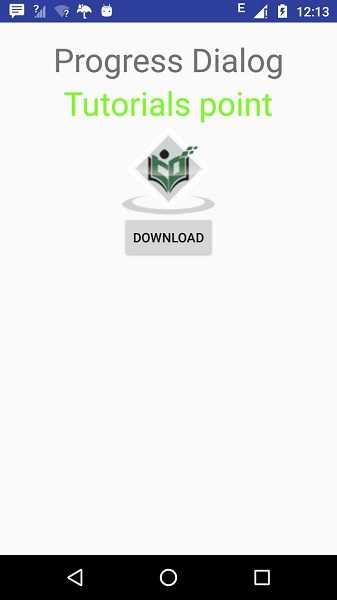
让我们尝试运行我们刚刚修改的应用程序。我假设您在设置环境时已经创建了 AVD。要在 Android Studio 中运行应用程序,请打开项目的一个 activity 文件,然后点击工具栏中的 Run  图标。Android Studio 会在您的 AVD 上安装应用程序并启动它,如果您的设置和应用程序一切正常,它将显示以下模拟器窗口 −
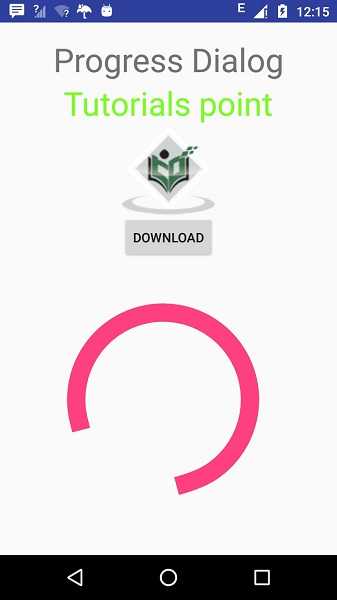
现在点击加载 spinner 按钮来开启加载 spinner。下图显示了效果 −